If you are currently using Blogger and are considering a move to WordPress,
you can migrate your blog fairly quickly and easily. There is really
nothing wrong with the platform in and of itself but if you’re
interested in taking your blog to the next level, especially if it
relates to monetizing it, customizing it, you should probably look to
move your blog to WordPress.
You may be thinking that moving from Blogger to WordPress may cause some problem to all your old permalinks (URLs), search
traffic,
Google PageRank (SEO) and
RSS subscribers.
But you don’t have to worry about these issues. You can safely migrate any blog from
Blogger to WordPress without losing your
SEO or RSS Subscribers or URLs.

Getting Started
The first step in the migration process is to install and configure WordPress. There are three ways to get a WordPress blog.
- The first is to download the WordPress software from WordPress.org.
- You can even sign up for an account that’s hosted at WordPress.com.
- If your Web hosting company supports it, the other way is to
automatically install WordPress using your Web account’s control panel
and a Web application like Fantastico or SimpleScripts.
Once you have your WordPress blog up and running, you can begin the
migration.The steps involved in the migration differ depending on how
you are hosting your previous blog. There are two different ways :-
- Migrate from Blogger’s servers i.e Blog with a subdomain address – e.g. http://example.blogspot.com
- Migrate from your own Web site i.e Blog with a Domain address – e.g http://blogger.com
At this point, I assume you have that :
- Your blog is on Blogger.com with Custom Domain Setup
- You have a web-hosting where you can install WordPress
- You have access to your domain’s DNS records.
- Configure Permalinks on New WordPress
Login to your WordPress admin panel and go to Settings ->
Permalinks and select Custom Structure option and paste the following
value next to it and save changes.
/%year%/%monthnum%/%postname%.html.

This will make your WordPress blog’s permalink structure looks like
Blogger.com blog. Do not use any other permalink structure at this time.
Import Content from Blogger to WordPress
Now its time to import your content from Blogger to WordPress. From the WordPress Dashboard, go to
Tools >> Import >> Blogger as shown below:

Now you will be asked to download and install the
Blogger to WordPress Impoter Plugin.

If for some reason you can’t install this plugin directly through
your interface you’ll have to download it manually and upload it
manually to your Plugins folder.
Next you need to do the
Authorization Process between your WordPress-powered blog and your old Blogger account.

On clicking
Authorize
you will be asked to enter your e-mail id and password. Fill all the
required fields and you will proceed to new screen where you will be
asked to
Grant Access to create secure connection between your Blogger blog to your new WordPress blog.

Once
you grant access, you will be taken back to the Blogger importer on
WordPress where you will be able to see a list of Blogger Blogs. Click
on the
Import Button and it will import your entire Blogger blog to WordPress.

If you have more than one author in Blogger.com blog, you may need to click on
add users on your WordPress blog. After creating users in
WordPress hit
Save Changes.

At this point your Blogger.com is completely imported. But remember you are not done till yet.
Update Blogger Info for SEO
Now you have to do some work in your old Blogger blog to make sure
you capture all SEO juice. To do so you need to change few things in
your account and settings. There is a little code involve in it but
that’s not too difficult.
Create you need to create
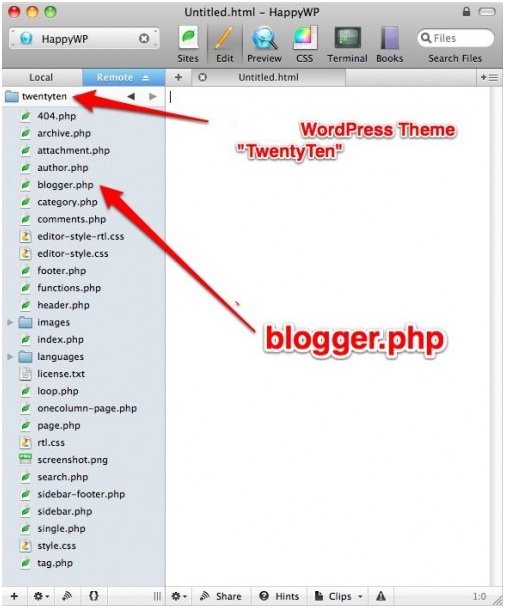
Blogger.php file using some text editor (notepad) with following code in it.
[cc]
/*
Template Name: Blogger
*/

global $wpdb;
$old_url = $_GET['q'];

if ($old_url != "") {
$permalink = explode("blogspot.com", $old_url);

$q = "SELECT guid FROM $wpdb->posts LEFT JOIN $wpdb->postmeta “.
“ON ($wpdb->posts.ID = $wpdb->postmeta.post_id) WHERE “.
“$wpdb->postmeta.meta_key=’blogger_permalink’ AND “.
“$wpdb->postmeta.meta_value=’$permalink[1]‘”;

$new_url = $wpdb->get_var($q)? $wpdb->get_var($q) : “/”;

header (“HTTP/1.1 301 Moved Permanently”);
header(“Location: $new_url”);
}
?>
[/cc]
The next is to
Upload this file into your current
WordPress Theme folder by using either cPanel or FTP software.

Further you need to create a
Page in WordPress called
Blogger. Go to Page >> Add new page and choose the
Template called Blogger in the Page Attribute area in the right side. After you are done publish the page.

Now go to your
Blogger admin panel. Click on
Design on right side and head into
Edit HTML area. Click on the link that says “
Revert Widget Templates to default”.

You will see a new
Edit HTML screen with some piece of code
written in it. Copy and paste the following code replacing all the
previously written code. Make sure that you change
http://www.blogger.com with your new and current domain name.
<!DOCTYPE html PUBLIC "-//W3C//DTD XHTML 1.0 Strict//EN" "http://www.w3.org/TR/xhtml1/DTD/xhtml1-strict.dtd">
<html xmlns="http://www.w3.org/1999/xhtml" xml:lang="en" lang="en" dir="<$BlogLanguageDirection$>">
<head>
<title><$BlogPageTitle$></title>
<script type="text/javascript">
<MainOrArchivePage>
window.location.href='http://blogger.com/'
</MainOrArchivePage>
<Blogger><ItemPage>
window.location.href='http://blogger.com/blogger/?q=<$BlogItemPermalinkURL$>'
</ItemPage></Blogger>
</script>
<MainPage><link rel="canonical" href="http://blogger.com/" /></MainPage>
<Blogger><ItemPage>
<link rel="canonical" href="http://blogger.com/blogger/?q=<$BlogItemPermalinkURL$>" />
</ItemPage></Blogger>
</head><body>
<div style="border:#ccc 1px solid; background:#eee; padding:20px; margin:80px;">
<p>This page has moved to a new address.</p>
<h1>
<MainOrArchivePage><a href="http://blogger.com"><$BlogTitle$></a></MainOrArchivePage>
<Blogger><ItemPage>
<a href="http://blogger.com/blogger/?q=<$BlogItemPermalinkURL$>"><$BlogItemTitle$></a>
</ItemPage></Blogger>
</h1>
</div>
</body>
</html>
<!-- replace blogger.com with your WordPress site URL --->
Click on the
Save Template Changes and guess what you are
done. Essentially what this is doing is redirecting all traffic,
requests, and links to your new WordPress blog.
Update RSS Feed
When you move your Blogger to WordPress the address of your feeds
will also be changed. To redirect your Blogger Feed to WordPress :-
Go to
Blogger >> Settings >> Site Feed >> Custom Feed >> and write your new WordPress feed address, and now your old feeds will automatically shift to your new WordPress feeds.
You should also consider using FeedBurner for your WordPress feeds.
Now that your new WordPress site is up and running with all the old Blogger posts, here are a
few important things you should do:
- When you migrate from Blogger to WordPress, all
your pictures images hosted on Blogger / Picasa Web Albums will not get
imported into WordPress. Therefore never delete your old blogger blog as
it will break images that are now embedded in your WordPress posts.
- Let everyone know that you’ve moved! Make the last post you do on
Blogger an “Announcement” type post sharing with people the news of the
migration.

![no-spam-filter[12]](https://lh3.googleusercontent.com/blogger_img_proxy/AEn0k_s32-uw2AnWU4w93_0cExFXObpm0Xob-s6-ffHSFeI1F--cTigXbU9q-VOmgJ8I02Ej5HmsebNBorbEj7NtMQuG5PFcsx8k1eV08FvRekQ1SYPJwl7zRCPjB6MG8pRdWTYgBhnG3CjTQ1nDrtZoN7kUYg=s0-d)



 i have another 5 tips instead of that all things.. so what for waiting?


